Dealwize provides a centralized settings hub (/settings) where team members and workspace administrators configure personal profiles, manage external AI agent connections, customize company branding, and govern subscription billing.
Settings are organized into a modular tabbed interface (SettingsTabs.tsx) protected by role-based permission checks:
  ┌────────────────────────────────────────────────────────────────────────┐
  │                    Dealwize Settings Architecture                      │
  ├────────────────────────────────────────────────────────────────────────┤
  │ Available to All Workspace Members:                                    │
  │   1. Profile          • Personal info, photo avatar, password security │
  │   2. Integrations     • MCP API keys, Claude / Cursor / ChatGPT tokens │
  │                                                                        │
  │ Restricted to Organization Admins (Org Owners):                        │
  │   3. Organization     • Company info, logo branding, custom domains,   │
  │                         qualification framework defaults               │
  │   4. Subscription     • Plan tiers, seat limits, storage, AI quotas    │
  │   5. Billing & Invoices • Stripe customer portal, payment cards, PDFs  │
  └────────────────────────────────────────────────────────────────────────┘
[!NOTE]
Standard Members see only the Profile and Integrations tabs. The Organization, Subscription, and Billing & Invoices tabs are strictly restricted to users with the Admin role (usePermissionCheck.ts). If a trial or subscription lapses, administrators are automatically routed directly to the Subscription tab to restore workspace access before continuing normal operations.
1. Profile Settings (Personal Account)#
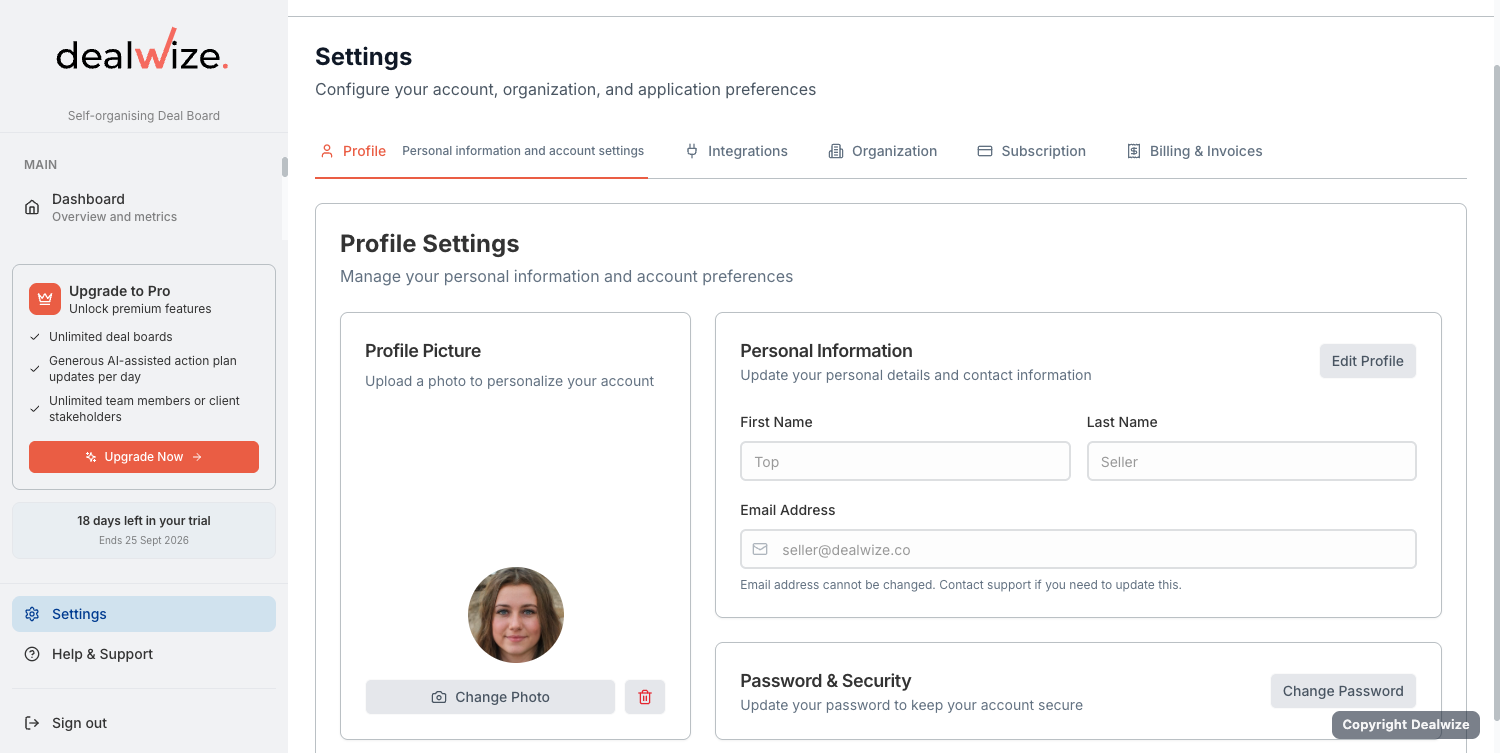
The Profile tab (ProfileTab.tsx) allows individual users to manage their personal credentials, contact identity, and security preferences.
Personal Information & Avatar#
- Name & Contact: Update your first name, last name, and display email address. These details appear across internal Deal Board task assignments and external Mutual Action Plan milestone owner cards.
- Photo Avatar Upload: Upload a professional headshot (JPG, PNG, WebP). Avatars are stored in secure object storage and served using authenticated signed URLs (
useAvatarUrl.ts), ensuring high-resolution rendering without exposing persistent public storage links. - Workspace Role Display: View your current organizational assignment and active role badge (Admin vs. Member).
Password & Security Management#
For accounts authenticated via work email and password:
- Enter your Current Password to verify identity.
- Provide a New Password meeting enterprise complexity standards.
- Confirm your new password and toggle visibility using the show/hide eye icon.
- Click Update Password to immediately rotate credentials across all active sessions.
[!TIP]
If your organization logs in via Google Workspace SSO, your authentication is managed upstream by your identity provider. Password change fields are automatically hidden for SSO accounts.
Account Removal#
If an individual team member needs to leave the organization or delete their user account, the Profile tab provides a verified account deletion workflow. For organization owners, transferring administrative ownership or reviewing the organization cascade deletion summary is required before removing the primary account.
2. Integrations & API Keys (External AI & MCP)#
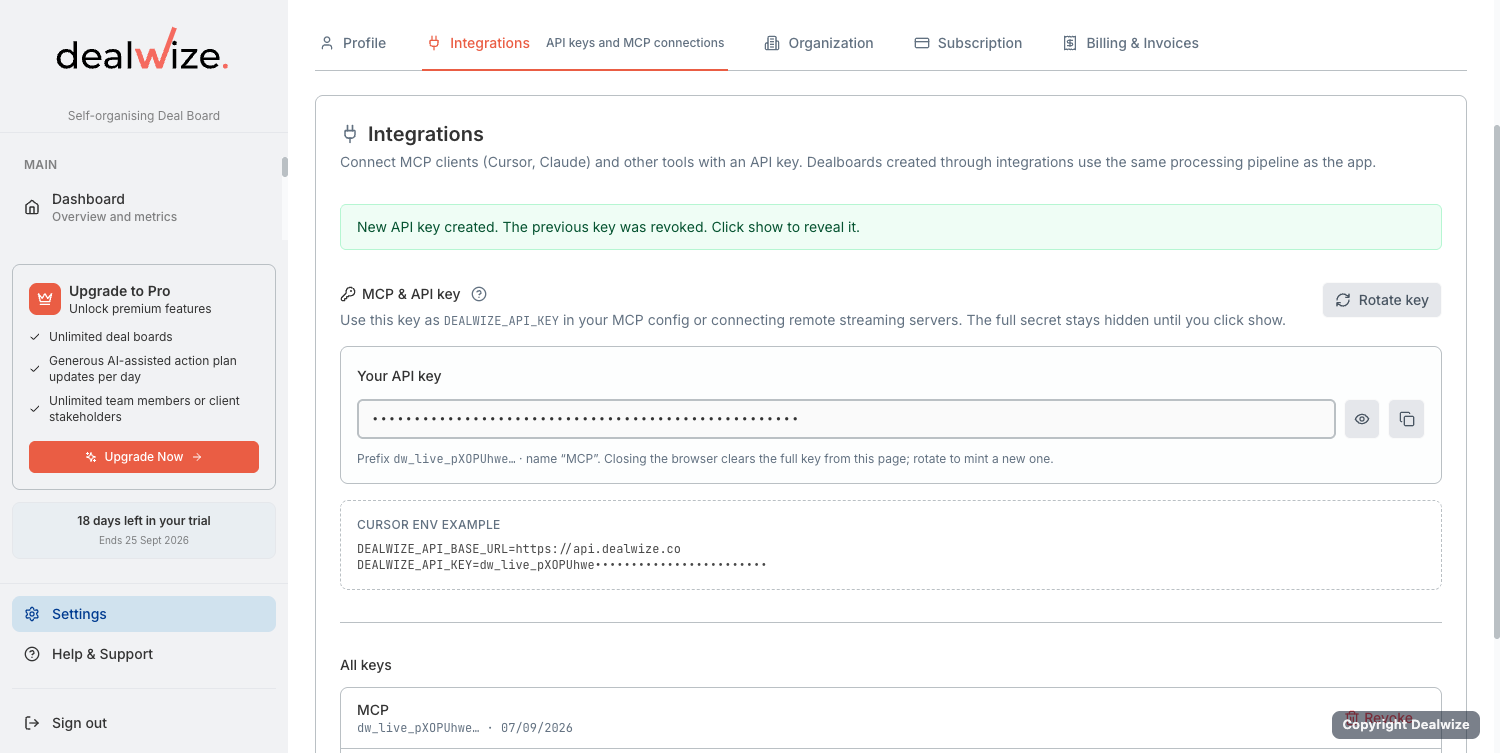
The Integrations tab (IntegrationsTab.tsx) manages programmatic access keys for connecting Dealwize to external Large Language Models (LLMs) and IDE agents via the Model Context Protocol (MCP).
MCP API Key Lifecycle#
Dealwize utilizes tokenized API keys with the canonical prefix dw_live_:
| Key Attribute | Value / Format | Security Behavior |
|---|---|---|
| Prefix | dw_live_... | Distinctly identifies live production Dealwize integration keys. |
| Masked Display | dw_live_••••••••••••3a8f | Displays only the key prefix and trailing characters after initial creation. |
| One-Time Reveal | Secure Reveal Dialog | The raw secret is displayed once upon generation with a one-click copy button. |
| Instant Revocation | Immediate (revoked_at) | Revoking an active key immediately cuts off all external MCP sessions. |
Connecting External AI Clients#
Once your API key is generated, connect your preferred AI agent environment:
- Claude Web & Claude Desktop: Use Dealwize's remote Streamable HTTP / Server-Sent Events (SSE) endpoint:
code snippet
{ "mcpServers": { "dealwize": { "url": "https://api.dealwize.com/api/v1/mcp/sse", "headers": { "Authorization": "Bearer dw_live_YOUR_API_KEY" } } } } - Cursor & IDE Extensions: Add Dealwize as a remote SSE MCP server in
.cursor/mcp.jsonto inspect live dealboards, qualification completeness, and customer objections directly within your coding editor. - ChatGPT & Custom GPTs: Configure an Actions integration using OpenAPI schemas authenticated via the Bearer API key.
For complete tool schemas and setup walkthroughs, see the Model Context Protocol (MCP) Guide and Connecting with Claude Desktop.
3. Organization & Branding#
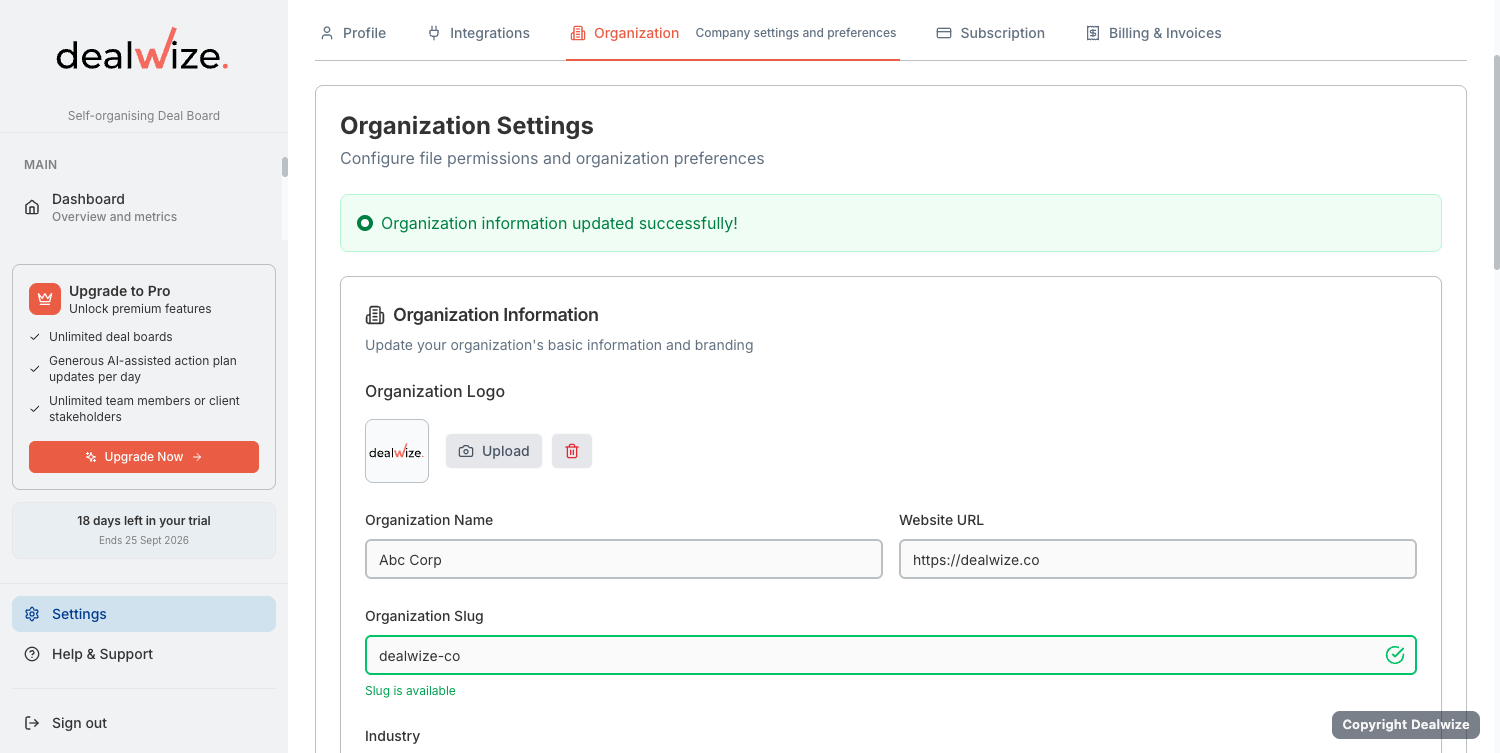
The Organization tab (OrganizationTab.tsx) is the command center for enterprise workspace administrators. It governs company identity, shared Deal Board branding, white-labeled domains, and sales qualification defaults.
Company Identity & URL Slug#
- Organization Name: The formal name of your company displayed in navigation headers, email notifications, and customer invoices.
- Organization Slug (
organization.slug): The URL-safe path prefix for your workspace (e.g.dealwize.com/acme-corp/). Dealwize automatically suggests slugs based on your company website domain (generateSlugFromUrl), with live validation ensuring uniqueness. - Website URL & Industry: Company metadata used by the Dealwize Brutal Truth engine to contextualize deal diagnostics and competitive risk benchmarks.
Custom Branding & Logo Upload#
Upload your official company emblem (SVG, PNG, JPG):
- Placement: Renders on the internal Deal Board navigation bar, client-facing Stakeholder Preview microsites, shared Mutual Action Plans, and PDF collateral previews.
- Asset Security: Stored in isolated enterprise buckets and served via signed URLs with dynamic cache invalidation (
useOrganizationLogoUrl.ts).
Custom Domains & White-Labeling#
To present Deal Boards under your corporate brand identity instead of the default dealwize.com domain:
- Enter your desired custom subdomain in the Custom Domain field (e.g.
deals.yourcompany.com). - Point a CNAME DNS record at your domain registrar to
cname.dealwize.com. - Click Verify DNS. Dealwize provisions an automated SSL/TLS certificate and activates custom domain routing across all shared Deal Boards.
Qualification Framework Defaults#
Through the embedded Qualification Frameworks Card (QualificationFrameworksCard.tsx), administrators configure which sales methodology lenses are active across the pipeline:
- MEDDIC / MEDDPICC: Default for enterprise and multi-stakeholder evaluations.
- CHAMP: Tailored for mid-market technical evaluations focused on Challenges and Authority.
- BANT: Streamlined for rapid early-stage qualification.
Toggling framework visibility controls the stage projection tabs reps see on their dealboards while preserving the unified 10-key canonical data model (qualification-meddic-bant-champ.md).
Danger Zone: Cascade Deletion#
Administrators can initiate organization deletion through the Delete Organization Modal (DeleteOrganizationModal.tsx). Before confirmation, Dealwize displays an impact summary detailing the exact count of affected Deal Boards, customer contacts, transcripts, team accounts, and active subscriptions.
4. Subscription & Billing#
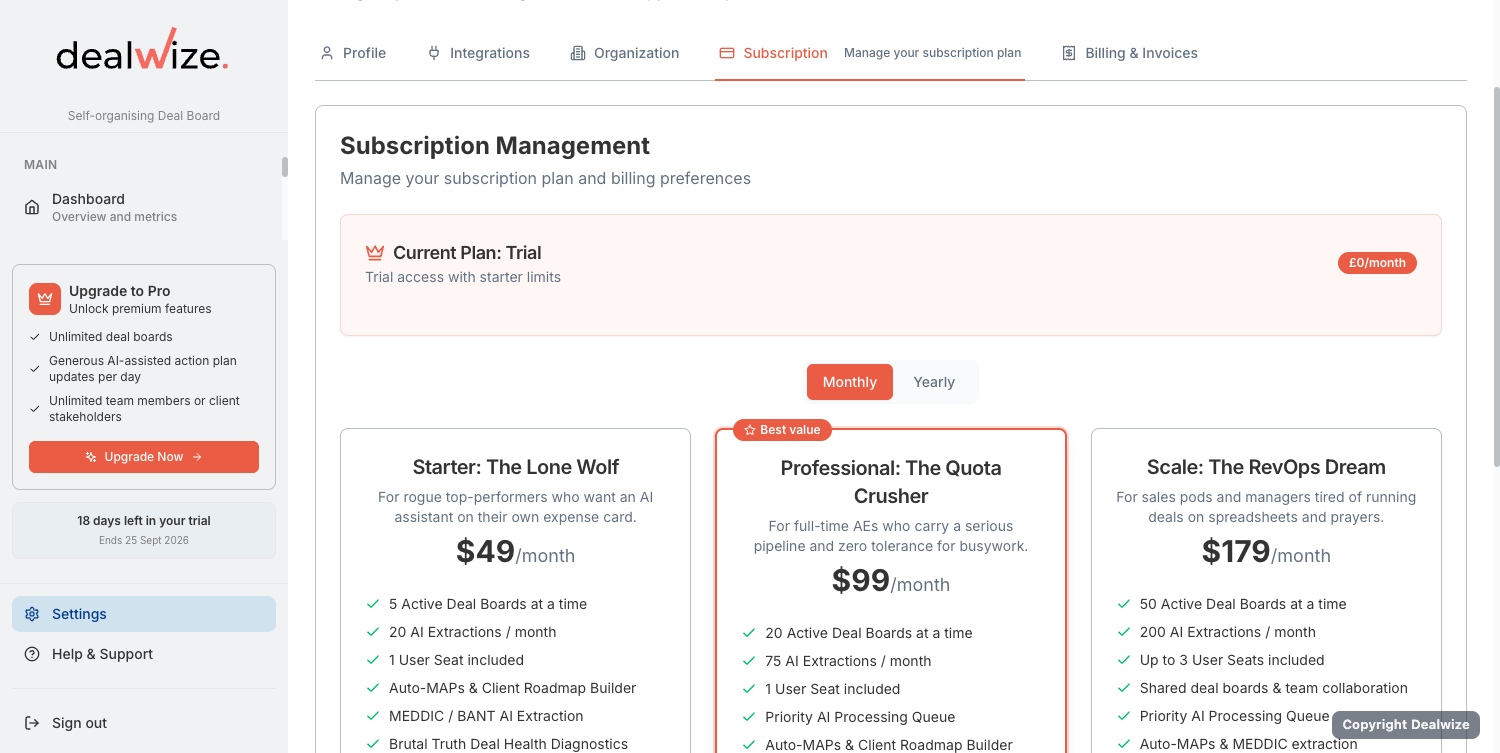
Dealwize separates commercial plan capacity from payment execution across two dedicated views: the Subscription tier selector (SubscriptionTab.tsx) and the Billing & Invoices portal (BillingTab.tsx).
Subscription Plans & Operational Limits#
Administrators can review current plan allocations and upgrade or downgrade tiers:
| Operational Metric | Starter Plan | Growth Plan | Enterprise Tier |
|---|---|---|---|
| Licensed Seats | Up to 5 Seats | Up to 25 Seats | Custom / Unlimited |
| Deal Boards (Microsites) | 10 per seat | 25 per seat | Unlimited |
| Storage per Deal Board | 2 GB / board | 10 GB / board | Custom dedicated storage |
| Monthly AI Extractions | 50 / month | 250 / month | Unlimited enterprise quota |
| Daily AI Invocations | 10 / board / day | 50 / board / day | High-throughput dedicated pool |
| Billing Intervals | Monthly / Annual | Monthly / Annual (20% Savings) | Annual Custom Contract |
Stripe Customer Billing Portal#
Dealwize integrates directly with Stripe (StripeService.ts) for secure, self-service payment management:
- Payment Methods: Add, update, or remove credit cards (Visa, Mastercard, AMEX). Set a primary default card for automatic renewals.
- Billing Address & VAT: Maintain company legal name, tax ID (EU VAT, GST), billing contact email, and corporate billing address.
- Plan Upgrades / Seat Additions: Seamlessly add billable rep seats with proration handled automatically by Stripe.
Invoices & Receipts#
The Billing & Invoices tab maintains a complete audit trail of historical transactions:
- Invoice Table: Lists invoice date, reference ID, billed amount, and payment status (
paid,pending,failed). - PDF Downloads: Click Download Invoice on any line item to retrieve compliant tax invoice PDFs for accounting and finance teams.
- Automated Receipts: Billing receipts are automatically dispatched to designated accounting email addresses upon successful renewal.
Summary Table: Settings Capabilities by Role#
| Capability | Module / Component | Member | Admin / Owner |
|---|---|---|---|
| Update Name, Email & Avatar | ProfileTab.tsx | ||
| Rotate Password & Security | ProfileTab.tsx | ||
| Generate / Revoke MCP API Keys | IntegrationsTab.tsx | ||
| Connect Cursor / Claude / ChatGPT | IntegrationsTab.tsx | ||
| Edit Company Name, Slug & Website | OrganizationTab.tsx | ❌ | |
| Upload Corporate Logo Branding | OrganizationTab.tsx | ❌ | |
| Configure CNAME Custom Domain | OrganizationTab.tsx | ❌ | |
| Set Workspace Qualification Frameworks | OrganizationTab.tsx | ❌ | |
| Change Subscription Plan & Seat Licenses | SubscriptionTab.tsx | ❌ | |
| Manage Payment Cards & Download Invoices | BillingTab.tsx | ❌ | |
| Cascade Delete Organization | OrganizationTab.tsx | ❌ |
Related Documentation#
- Invite and manage team colleagues: Team Access, Internal Roles & Workspace Governance
- Connect external LLM workflows: Model Context Protocol (MCP) Guide
- Configure client permissions: External Stakeholder Access & Permissions
- Setup sales methodologies: Automated Deal Qualification: MEDDIC, BANT & CHAMP